Saturday, March 30, 2013

Compiling libhid for Raspbian Linux on a Raspberry Pi


My son and I are working on a project using a Raspberry Pi and I needed to be able to talk to a USB HID device. This requires a software library called libhid but unfortunately it is not available as a package on Raspbian linux. I downloaded the source and attempted to compile it but ran into an error:

lshid.c:32:87: error: parameter ‘len’ set but not used [-Werror=unused-but-set-parameter]
cc1: all warnings being treated as errors
make[2]: *** [lshid.o] Error 1
make[2]: Leaving directory `/root/libhid-0.2.16/test'
make[1]: *** [all-recursive] Error 1
make[1]: Leaving directory `/root/libhid-0.2.16'
make: *** [all] Error 2

After some googling I found a couple others on the Raspberry Pi forums that ran into the same problem. One of the commenters came up with a simple fix that requires a quick edit of the source code. In ~/libhid-0.2.16/test you need to edit the file lshid.c

Here is the code before making the edit:

39 /* only here to prevent the unused warning */
40 /* TODO remove */
41 len = *((unsigned long*)custom);
42
43 /* Obtain the device's full path */


Here is the code after the edit.
You need to comment out line 41 and then add len = len; and custom = custom;

39 /* only here to prevent the unused warning */
40 /* TODO remove */
41 //len = *((unsigned long*)custom);
42 len = len;
43 custom = custom;
44
45 /* Obtain the device's full path */

After editing the file simply run configure, make and make install like normal. The library will be put into /usr/local. Make sure you run sudo ldconfig before trying to compile any software that uses libhid. Thanks Raspberry Pi forums!

Wednesday, March 20, 2013

Bandwidth limits for guest wifi on an ASA 5505


At work we have free wifi for our customers as a nicety and so they can download our smartphone app if needed. Initially I set it up with no bandwidth limits with the idea of keeping an eye on it and locking it down if there was abuse. Over the past few weeks my MRTG graphs showed several spikes where the free wifi hit 10mbps. That is a big chunk of our internet connection so I decided it was time to limit the bandwidth. Since I'm not a Cisco expert it took some Googling to find the best way to do this. I found a couple resources that helped me put together what I needed. The free wifi network is on a separate VLAN with it's own IP subnet.

Here is interface definition for the VLAN

interface Vlan92
  nameif freewifi
  security-level 50
  ip address 192.168.92.1 255.255.255.0


Here is the syntax I used to limit the freewifi VLAN to 2mbps. The limit is applied to the subnet used by the freewifi VLAN.

access-list ip-qos extended permit ip 192.168.92.0 255.255.255.0 any
access-list ip-qos extended permit ip any 192.168.92.0 255.255.255.0

class-map qos
  description qos policy
  match access-list ip-qos

policy-map qos
  class qos
    police output 2000000 2000000
    police input 2000000 2000000

service-policy qos interface freewifi


Testing

My initial thought for testing the bandwidth limits was to connect to the freewifi VLAN and simply use one of the internet speed testing web sites. The speed test web sites worked fine for download speeds but the upload tests kept reporting that they were getting the full bandwidth of the connection. It seemed like the upload limit wasn't being enforced. I tried all of the popular speed testing sites and got the same result. Downloads were limited to 2mbps and uploads were running at the full speed of the connection. Hmmm...

I reviewed my settings on the ASA and everything seemed like it was correct. I decided to do a different type of test to see if I would get a different result. I created a 10MB file and then tested uploading and downloading it to and from a server out on the internet using scp. This test gave me the results I was expecting. Both upload and download of this test file took about 35 seconds which is inline for a 2mbps connection. I then tested transferring the same file on the inside VLAN which has no bandwidth limits and the scp transfer time was 4 seconds. I'm not sure what was going on with the speed test sites but the upload speeds were not reporting accurately for me.


Monitoring status

You can watch the bandwidth limits in action using the 'show service-policy police' command. If the limit is exceeded the output will show the number of packets and bytes that have exceeded the bandwidth limit.

This is the command output before sending any traffic:

asa5505# show service-policy police

Interface freewifi:
  Service-policy: qos
    Class-map: qos
      Output police Interface freewifi:
        cir 2000000 bps, bc 2000000 bytes
        conformed 1306 packets, 907993 bytes; actions:  transmit
        exceeded 0 packets, 0 bytes; actions:  drop
        conformed 0 bps, exceed 0 bps
      Input police Interface freewifi:
        cir 2000000 bps, bc 2000000 bytes
        conformed 1072 packets, 192021 bytes; actions:  transmit
        exceeded 0 packets, 0 bytes; actions:  drop
        conformed 0 bps, exceed 0 bps


This is the output after transmitting several test files:

asa5505# show service-policy police

Interface freewifi:
  Service-policy: qos
    Class-map: qos
      Output police Interface freewifi:
        cir 2000000 bps, bc 2000000 bytes
        conformed 149813 packets, 127878453 bytes; actions:  transmit
        exceeded 10273 packets, 14716462 bytes; actions:  drop
        conformed 3384 bps, exceed 360 bps
      Input police Interface freewifi:
        cir 2000000 bps, bc 2000000 bytes
        conformed 157493 packets, 123699017 bytes; actions:  transmit
        exceeded 15083 packets, 21214456 bytes; actions:  drop
        conformed 4928 bps, exceed 760 bps


Resources


Monday, March 18, 2013

Template Nagios check for a JSON web service

I wrote two different custom Nagios checks for work last week and realized I could make a useful template out of them. After writing the first check I was able to reuse most of the code for the second check. The only changes I had to make had to do with the data returned. So I decided to make this into a generic template that I can reuse in the future. The check first verifies that the web service is responding correctly and then checks various data returned in JSON format.  While writing this template I found this really cool service (www.jsontest.com) that let me code against a service available to anyone who wants to try out this Nagios check before customizing it. This is the first time I have used Python's argparse function and I have to say it is fantastic. It makes adding command line arguments very easy and the result is professional looking.

My github repo can be found here: https://github.com/matt448/nagios-checks

Here is the code in a gist:

Wednesday, March 13, 2013

Nagios file paths on Ubuntu and simple backup script


This is more of a note to myself than anything else but might be helpful to others. Here are the config and data directories for Nagios when installed using packages on Ubuntu 12.04.


Config files
----------------------
/etc/nagios3/
/etc/nagios3/conf.d
/etc/nagios-plugins/config
/etc/nagios

Plugin executables
---------------------
/usr/lib/nagios/plugins

Graphing (pnp4naigos)
----------------------
/usr/share/pnp4nagios/html
/var/lib/pnp4nagios/perfdata

Other
-----------------------
/var/lib/nagios
/var/lib/nagios3


Here is a very simple backup script for Nagios on Ubuntu 12.04

Monday, January 28, 2013

Relaying Postfix through AuthSMTP on an alternate port


AuthSMTP is an authenticated SMTP relay service that you can use with web applications or any situation you need to send outbound e-mail. Because it is an authenticated service it is a little trickier to configure Postfix to relay through their service. I found this post really helpful in configuring the sasl options but one thing I couldn't find a clear answer on was how to use a port other than 25 for the relay host. AuthSMTP offers alternative ports (23, 26, 2525) for SMTP because some ISP's block port 25. To use an alternative port just put a colon after the host name and add the port number. Like this (in main.cf):

relayhost = mail.authsmtp.com:2525


The entry in your sasl-passwords file must match the relayhost name like this:

mail.authsmtp.com:2525 username:secretpassword


Just a quick tip about something that wasn't obvious to me and hopefully this helps out someone else.


Tuesday, July 31, 2012

File transfer through Windows Remote Desktop client

I can't believe I have never known about this feature of the Windows Remote Desktop client. I have been using Windows since version 3.1 and I use the Remote Desktop client (RDP) almost everyday at work. I have done an informal poll of several people I work with and none of them knew about this either. The feature I am talking about is mapping local drives to a remote machine using only the Remote Desktop client. I only ran across this myself while doing some reading about managing Amazon EC2 instances. I'm not sure why this feature is buried so deep in the options. Anyway here is how to use it:


Launch Remote Desktop and click on the 'Local Resources' tab.

I have used the Local Resources tab many times to change printer and audio settings. That 'More...' button hides some neat features. Click on 'More...' 

After clicking 'More...' you will have a list of all the drives available on your local PC. Check the box next to the drives you want to have mapped to the remote system.

After you have made the Remote Desktop connection to the remote machine this is how the drive appears on the remote system. There is an 'Other' section in the list of drives. Now you can to copy files back and forth to the remote system directly through the Remote Desktop client connection!

Wednesday, July 11, 2012

NetApp deduplication for VMware

Being a skeptic I usually don't believe something until I see some hard evidence. When I am dealing with claims made by a company trying to sell me something I don't believe anything until I see results with my own two eyes. At work we recently began upgrading from a NetApp FAS270C to a FAS2240-2. We needed to upgrade to a faster filer anyway so deduplication wasn't the only selling point but it definitely was of interest to me. We are planning on migrating our VMware virtual machine disks from local storage on our various ESXi servers to centralized storage on the NetApp over NFS mounts. NetApp deduplication has been around for a while now and NetApp recommends enabling dedup for all VMware volumes. My NetApp sales rep also told me that tons of his other customers were using NFS mounts along with dedup and seeing disk space savings of 20-50%. Based on all of that info and finally having the budget to purchase a new filer I decided it was time to try dedup out in my environment.

I began testing a few weeks ago by creating a few test VM's on the NFS mounted volume and after that went well I moved on to migrating a few existing non-critical VM's to the NFS mount. The performance over NFS was quite good and after letting things run for about a week I did not see anything obviously wonky with the virtual machines so I decided to enable deduplication or "Storage Efficiency" as NetApp calls it. One thing to note is that the deduplication only works for data added after it has been enabled. So if you have an existing volume that is already filled with data you won't see much benefit unless you tell the NetApp to scan all the data on volume.

HOW TO

So let's start with the command to manage dedup on a NetApp. The command is named 'sis'. Running sis with no options will give you the list of available options
netapp2240-1> sis
The following commands are available; for more information
type "sis help "
config              off                 revert_to           status
help                on                  start               stop

The sis status command will show you if dedup is enabled.
netapp2240-1> sis status          
Path                           State      Status     Progress
/vol/testvol                   Disabled   Idle       Idle for 02:12:30
/vol/vol_prod_data             Enabled    Active     70 GB Scanned

The sis on /vol/volname command will enable dedup on a volume.
netapp2240-1> sis on /vol/testvol
SIS for "/vol/testvol" is enabled.
Already existing data could be processed by running "sis start -s /vol/testvol".
Notice that helpful message about processing already existing data? The default schedule once dedup is enabled is to run the process one a day at midnight. You can kick off the process manually with the sis start /vol/volname command. The start command has a '-s' option which will cause the dedup scan to process all of the existing data looking for duplication.
netapp2240-1> sis start -s /vol/testvol
The file system will be scanned to process existing data in /vol/testvol.
This operation may initialize related existing metafiles.
Are you sure you want to proceed (y/n)? y
The SIS operation for "/vol/testvol" is started.
netapp2240-1> Wed Jul 11 14:10:06 CDT [aus-netapp2240-1:wafl.scan.start:info]: Starting SIS volume scan on volume testvol.
You can use the sis status command to monitor the progress of the deduplication process.
netapp2240-1> sis status
Path                           State      Status     Progress
/vol/testvol                   Enabled    Active     4 KB (100%) Done

RESULTS

For my volume that is storing VMware virtual machine disks I am seeing an unbelievable 59% savings of disk space. It's pretty crazy. I keep adding virtual machine disks to the volume and the used space hardly grows at all. So far all of the virtual machines I have put on this volume are Linux. I expect once I start adding some Windows VM's the savings will go down somewhat.


To highlight the importance of using the '-s' option to process all existing data I have this example from a volume that is used as a file share for user data. We enabled dedup and after several nightly dedup runs we were disappointed to see almost no savings.
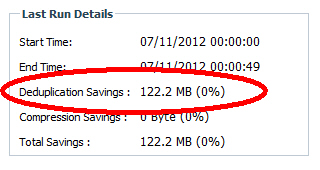
Dedup enabled but without initially using the '-s' option.
I knew something wasn't right. I had a hunch that the users had more than 122MB of duplicate files out of 450GB of data. In doing research for this blog post I discovered the '-s' option. We kicked off a manual dedup process with the -s and check out the results.
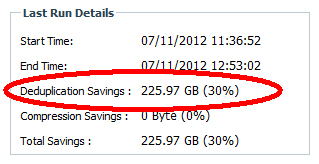
After reprocessing with '-s'.
We freed up 225GB of disk space with one simple command (and the command wasn't rm * ;-).

I recommend enabling deduplication on any file share volumes or VMware volumes. You will probably see more savings with the VMware volumes because multiple copies of operating systems will have lots of duplicate files. So far I have seen between 15-30% savings for file share volumes and up to 59% savings for VMware volumes.